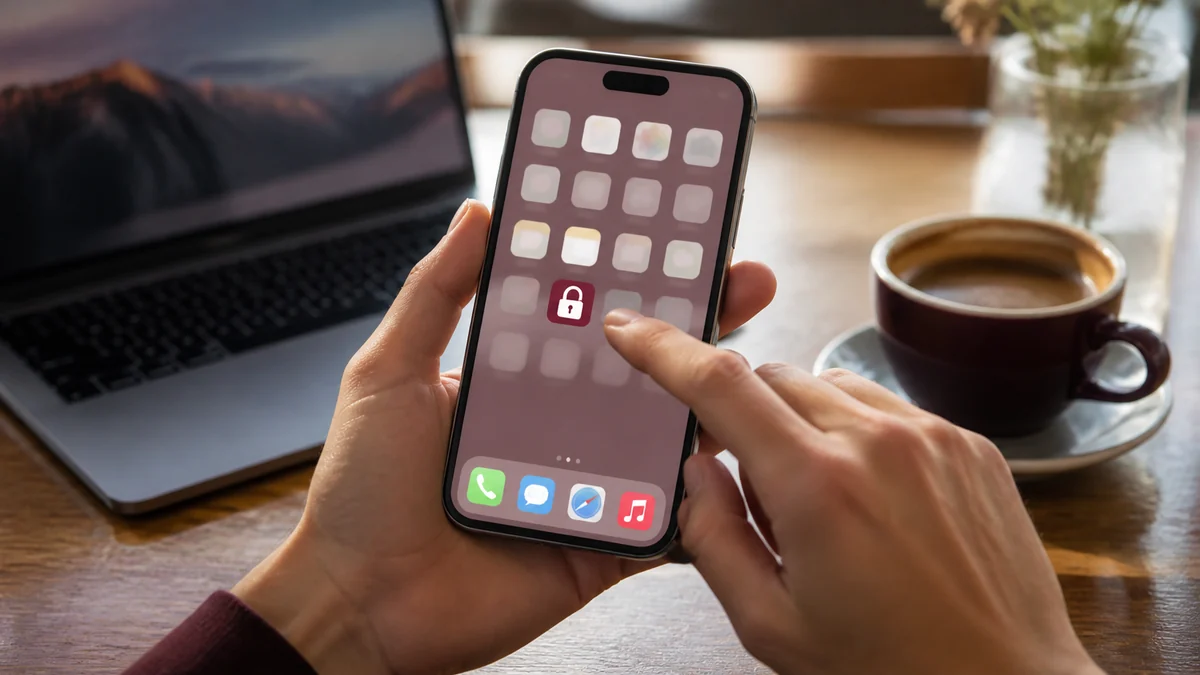
The tool is a static web page with a manifest, which means both mobile platforms will install it as a home screen app. No store, no account, no background processes — just a launcher icon that opens instantly.
Key Takeaways
- Both iOS and Android install it from the browser in about fifteen seconds.
- Installed, it opens without browser chrome and loads instantly from cache.
- It requests no permissions, runs no background code, and sends no notifications.
- Your recent-lookup list stays on the device and is cleared by the tool's Clear button.
What a Home Screen Web App Actually Is
Installing a web app does not download a native application. The browser saves a launcher shortcut plus the site's manifest — its name, icons, colours and display mode — and opens the page in a standalone window without an address bar.
Functionally it behaves like an app: its own icon, its own entry in the task switcher, its own window. Technically it is still the same web page, running under the same browser security model, with the same absence of special permissions.
That is the appeal here. You get one-tap access without granting anything, and uninstalling is deleting an icon.
Installing on iOS
- Open paywallremover.org in Safari. This must be Safari — other iOS browsers cannot add to the home screen.
- Tap the Share button in the toolbar.
- Scroll the share sheet and choose Add to Home Screen.
- Edit the name if you like, then tap Add.
The icon appears on your home screen and opens in standalone mode, with the dark theme colour applied to the status bar.
If "Add to Home Screen" is missing from the share sheet, scroll further down or tap Edit Actions to enable it — it is sometimes hidden in a customised sheet.
Installing on Android
- Open the site in Chrome, or any Chromium-based browser.
- Tap the three-dot menu.
- Choose Install app, or Add to Home screen depending on your version.
- Confirm.
Chrome may also offer an install prompt automatically on a second visit. Firefox on Android supports the same feature through its menu, and Samsung Internet offers "Add page to" then "Home screen".
On Android the installed app appears in the app drawer as well as the home screen, and can be uninstalled like any other app.
What It Does and Does Not Do Once Installed
Worth being precise, because "install" implies more than is happening.
| Behaviour | Status |
|---|---|
| Opens without browser chrome | Yes |
| Loads instantly from cache | Yes, after first visit |
| Runs background processes | No |
| Sends notifications | No — none are requested |
| Accesses contacts, location, camera | No — none are requested |
| Reads other sites you visit | No, and it cannot |
| Stores recent lookups | Yes, locally, cleared by the Clear button |
The link building itself is pure client-side JavaScript, so the tool functions identically whether it is installed or opened in a tab.
Pairing It with the Share Sheet
The installed app becomes considerably more useful combined with a share action, so you are not copying and pasting.
On iOS, build a Shortcut that accepts URLs, wraps the input in https://paywallremover.org/?url=, and opens the result. Enable "Show in Share Sheet" and it appears under every article you read.
On Android, Copy link from the share menu then open the app icon; or use an automation app to create a direct share target that does both steps at once.
Either way you go from a blocked article to nine generated routes in two taps.
Keeping It Current and Removing It
Because it is a web page, it updates when the site updates — there is nothing to patch. If a change does not appear, open the site in a normal browser tab and reload to refresh the cache.
To remove it, delete the icon on iOS, or uninstall from the app drawer on Android. Clearing site data for the domain also removes your stored recent-lookup list, though the Clear button inside the tool does that more directly.
Why a Web App Rather Than a Native One
The obvious question is why this is not simply an app in the store, and the answer explains a fair amount about how the whole site is built.
A native app would need a developer account, a review process and a release cycle for every change. More importantly it would ship compiled code onto your device with whatever permissions its manifest declared, and you would be trusting that those permissions stay as modest as they started. Store apps change hands and change behaviour through updates you do not read.
A web app inverts that. There is nothing compiled, nothing running when the window is closed, and no permission grant at all. The security model is the browser's, which is the most heavily scrutinised sandbox most people use. If the site did something unexpected tomorrow, you would close the tab and it would be over.
The trade-off is real but small here: no push notifications, no deep OS integration, and installation is slightly less discoverable. For a tool whose entire job is turning one URL into a set of links, none of that is missed, and the privacy position is considerably stronger.
Troubleshooting a Stale or Missing Icon
Two small problems account for nearly every issue people hit with home screen installs, and both have quick fixes.
The page looks out of date. Because the launcher opens a cached copy, an older version can persist after the site updates. Open the same address in a normal browser tab and reload, which refreshes the cache the installed app shares. On iOS, clearing website data for the domain in Settings forces a clean fetch.
The icon is generic or blurry. This means the manifest icons were not fetched at install time, usually because the connection dropped mid-install. Delete the shortcut, load the site fully in the browser, and add it again.
On Android, an install prompt that never appears usually means the browser has not yet decided the site qualifies — visiting twice, a few minutes apart, generally triggers it. Failing that, "Add to Home screen" in the menu does the same job manually.
None of these lose any data, because the only thing stored locally is your recent-lookup list, and that lives in the browser's storage for the domain rather than in the shortcut itself.
If you use more than one device, note that the installed app is per-device and the recent-lookup list does not sync. That is deliberate rather than a limitation: syncing it would mean sending your lookups somewhere, which is precisely what the tool is built not to do.
Frequently Asked Questions
Does it work offline?
The page itself loads from cache, so the interface opens offline. The generated routes are links to external services, which naturally need a connection to follow.
Will it take up much storage?
Negligible. One stylesheet, one script, one HTML page and a few icons — well under a megabyte in total.
Can I install it on a desktop too?
Yes. Chromium browsers on Windows, macOS and Linux offer an install option in the address bar that creates a standalone desktop window.
Conclusion
Saving Paywall Remover to your home screen creates quick access without a separate app, account, or invasive permissions. Use the browser's official installation option, confirm the correct site address, and keep your device updated. The shortcut then provides a convenient, privacy-conscious starting point whenever an article needs legitimate access routes.
Find Access Options for Your Article
Paste a link and get nine legitimate research routes in a second.